
Capturing a cardinal’s vibrant visit or a hummingbird’s dazzling hover is thrilling, but sharing that joy with family makes it unforgettable. A modern bird feeder camera isn’t just a solo gadget; it’s a portal for shared discovery. With the companion app for cameras like the Wi-Fi Bird Feeder Camera, adding family members is a quick, secure process that transforms a personal hobby into a collective experience. This guide will walk you through the simple steps to grant access, so everyone can enjoy the live stream, review highlights, and marvel at AI identifications together.
Table of Contents
Before You Begin: 3 Quick Checks
Ensure a smooth setup by confirming these points first:
- You’re Set Up: Your main account must already be connected to the camera with a stable Wi-Fi signal.
- Family Has the App: Ask family members to download the official app from the iOS App Store or Google Play Store and create their own free accounts.
- Plan Permissions: Think about the access level each person needs—from “view only” for kids to “full management” for a partner.
The Simple 3-Step Sharing Process
Step 1: The Main Account Sends the Invite
From the primary device where the camera is set up:
- Open the app and navigate to your bird feeder camera’s settings (usually a gear icon).
- Look for an option labeled “Family Sharing,” “Device Sharing,” or “Add Member.”
- Enter the family member’s registered email address or phone number. Many apps also offer a QR code method—simply have the family member show their profile QR code within their app for you to scan.
Step 2: Set Custom Permissions for Each User
This is the key to safe, stress-free sharing. You can typically assign one of three permission levels:
- Viewer: Can watch the live stream, see past recordings, and view AI bird identification logs. Perfect for children, grandparents, or anyone who just wants to enjoy the show.
- Contributor: Has “Viewer” access plus the ability to save photos and video clips to their own account within the app. Great for family members who love to collect their favorite moments.
- Manager: Has full control, equal to the owner. Can change camera settings, manage other users, and format storage. Reserve this for a spouse or trusted household member.
Pro Tip: Permissions can be changed or revoked at any time, so you can start conservatively and adjust as needed.
Step 3: Family Members Accept & Start Watching
Once you send the invite:
- The family member will receive a notification within the app (or via email/text).
- They simply tap “Accept” or follow the link in the message.
- The bird feeder camera will automatically appear in their device list. No complicated re-pairing is needed. They can immediately start watching based on the permissions you set.
Pro Tips for a Better Shared Experience
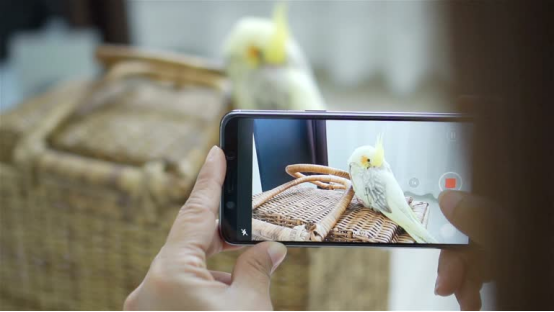
- Stable Multi-Viewer Streaming: Quality bird feeder cameras support 5 or more simultaneous viewers without lag. If you notice choppy video, try lowering the stream resolution in the main app settings temporarily to ease bandwidth demand.
- Engage with Built-In Features: Use in-app comment features to chat about what you’re seeing in real-time. Some apps offer a shared album where saved clips and snapshots are pooled, creating a collaborative family birding journal.
- Add Members Remotely: Distance is no barrier. You can easily add family members in different cities or states, allowing grandparents to watch their grandkids’ backyard discoveries live.
FAQ: Your Family Sharing Questions Answered
- How many people can I share with?
- A: Most apps allow 5-10 shared accounts, with 3-5 able to watch the live stream simultaneously. Check your specific model’s specs.
- What if the invitation isn’t received?
- A: First, double-check the email or phone number. Ask the family member to check their app notification center and spam folder. You can always cancel and resend the invite from the main account.
- Can I remove someone’s access later?
- A: Yes, instantly. As the owner, go to the sharing settings, select the person’s name, and choose “Remove Access.” They will lose all connection to the camera immediately.
- Does sharing drain the camera’s battery or use more data?
- A: No. The camera encodes and uploads one stream. Multiple viewers connect to that single stream, so it doesn’t increase the load on the camera’s battery or your home network’s upload data. Each viewer’s data consumption depends on their own internet connection.
Conclusion: Connect Through Shared Wonder
Sharing access to your bird feeder camera is more than a technical feature—it’s a way to build memories, spark conversations, and nurture a shared love for nature across generations or miles. The process is designed to be as simple as sharing a photo, with the security controls you need for peace of mind.
Ready to include the whole family in the adventure? Explore a Wi-Fi bird feeder camera with easy, secure family sharing features and bring everyone closer to nature.